7. Effects
Effects change a value on top of its keys: shake it, circle it, snap it to a grid, or let it spring after the keyed motion. Add them with addEffect(). Most effects live in their own package:
Wiggle
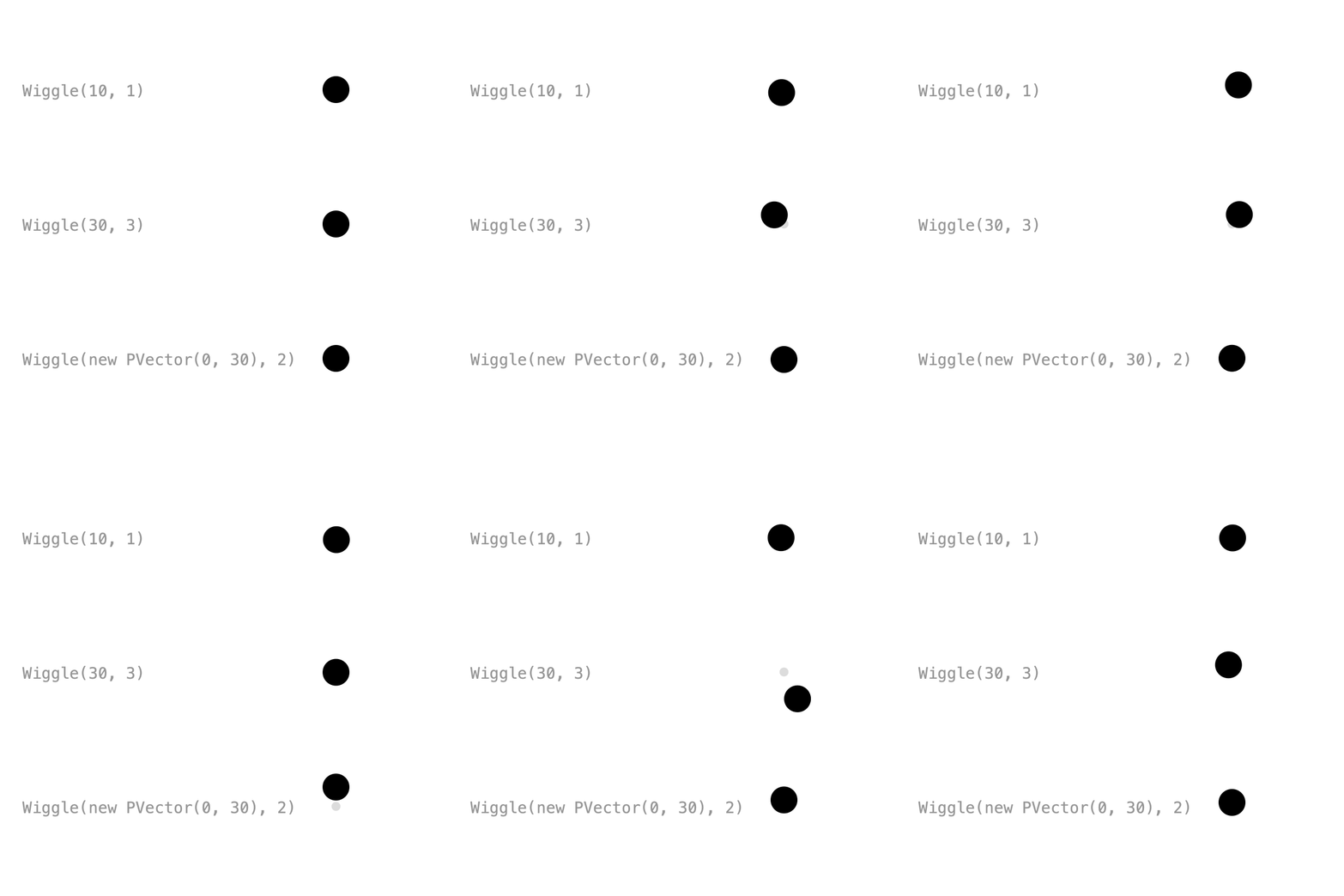
Wiggle(amplitude, frequency) adds a smooth random offset of up to ±amplitude, changing direction about frequency times per second, inspired by After Effects' wiggle(). Effects work even without keys: the value is just its default, and the effect still moves it.
gentle = Keyed.of(new PVector(300, 80))
    .addEffect(new Wiggle(10, 1));

// An amplitude per axis: this one only moves up and down.
vertical = Keyed.of(new PVector(300, 320))
    .addEffect(new Wiggle(new PVector(0, 30), 2));
Every Wiggle moves differently. Pass a seed as a third argument, and wiggles with the same seed and settings move the same way. On a looping timeline, Wiggle loops seamlessly when duration × frequency is a whole number.
Full sketch: WiggleEffect
import ch.domizai.keyed.*;
import ch.domizai.keyed.effect.*;

Keyed<PVector> gentle, jittery, vertical;

void settings() {
    size(400, 400);
}

void setup() {
    // No duration: the default timeline runs forever, and so does the wiggle.
    Keyed.init(this);
    textFont(createFont("Courier", 14));
    textAlign(LEFT, CENTER);

    // Effects change the value on top of the keys. Without any keys
    // the value is just the default, and the effect still moves it.

    // Wiggle(amplitude, frequency): a smooth random offset of up to
    // ±amplitude, changing direction about frequency times per second.
    gentle = Keyed.of(new PVector(300, 80))
        .addEffect(new Wiggle(10, 1));

    jittery = Keyed.of(new PVector(300, 200))
        .addEffect(new Wiggle(30, 3));

    // An amplitude per axis: this one only moves up and down.
    vertical = Keyed.of(new PVector(300, 320))
        .addEffect(new Wiggle(new PVector(0, 30), 2));

    // Every Wiggle moves differently. Pass a seed as a third argument,
    // and Wiggles with the same seed and settings move the same way.
    // On a looping timeline, Wiggle loops seamlessly when
    // duration * frequency is a whole number.
}

void draw() {
    background(255);
    row("Wiggle(10, 1)", 80, gentle);
    row("Wiggle(30, 3)", 200, jittery);
    row("Wiggle(new PVector(0, 30), 2)", 320, vertical);
}

void row(String label, float y, Keyed<PVector> ball) {
    noStroke();
    fill(150);
    text(label, 20, y);

    // The value without the wiggle.
    fill(220);
    circle(300, y, 8);

    PVector p = ball.value();
    fill(0);
    circle(p.x, p.y, 24);
}
Orbit
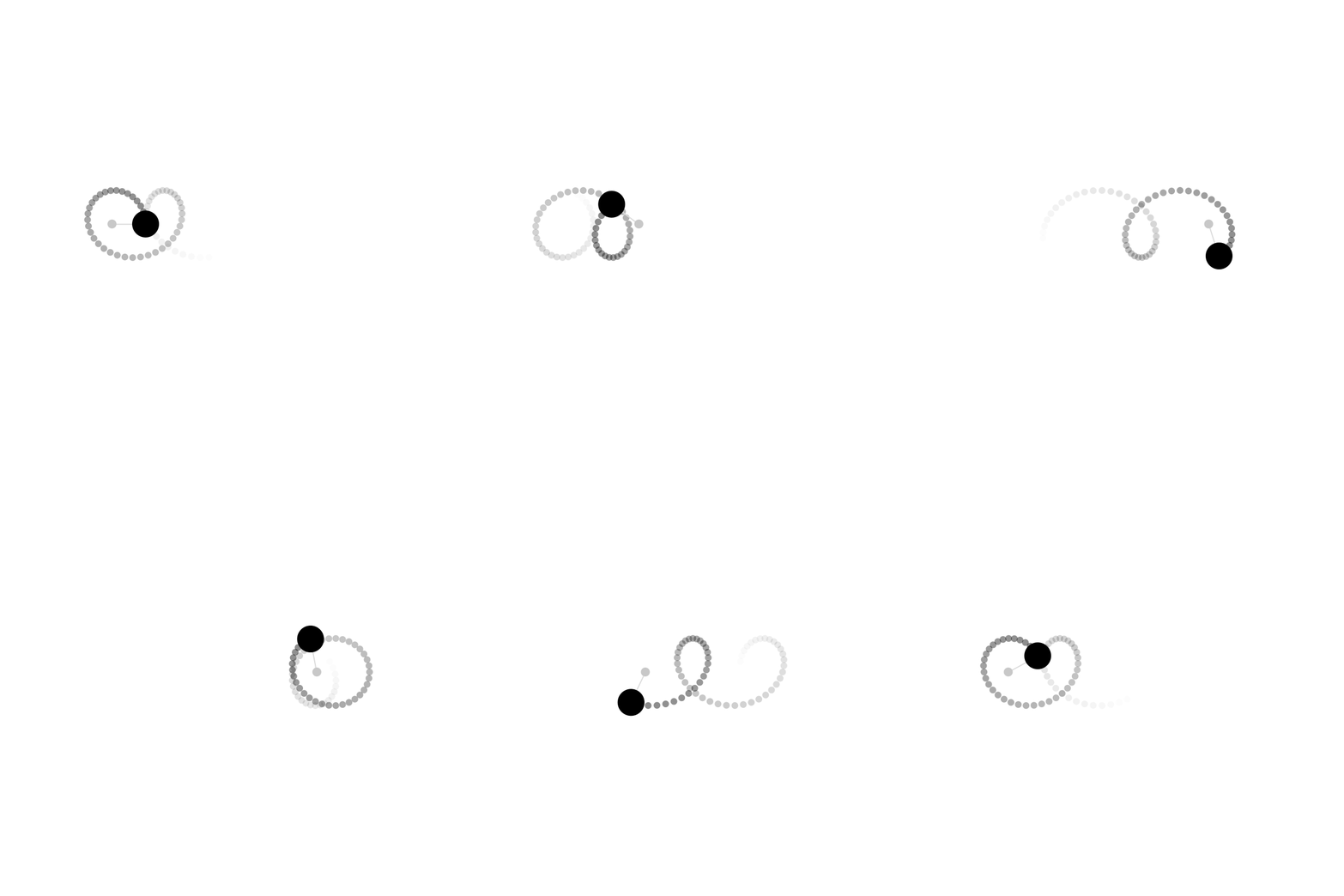
Orbit(radius, frequency) circles around the value, frequency times per second. Orbit(radius, frequency, axis) circles around any 3D axis instead.
2 circles per second in a 4 second loop is a whole number of circles, so the loop is seamless. The trail comes from echo(), see Echo at the end of this chapter.
Full sketch: OrbitEffect
import java.util.List;

import ch.domizai.keyed.*;
import ch.domizai.keyed.effect.*;

Keyed<PVector> center, ball;

void settings() {
    size(400, 400);
}

void setup() {
    Keyed.init(this).setDuration(4);

    center = motion();

    // Orbit(radius, frequency) circles around the value, frequency times
    // per second. 2 per second in a 4 second loop is a whole number of
    // circles, so the loop is seamless.
    // Orbit(radius, frequency, axis) circles around any 3D axis instead.
    ball = motion().addEffect(new Orbit(30, 2));
}

Keyed<PVector> motion() {
    return Keyed.ofPVector()
        .key(Key.at(0).setEasing(1 / 3f), new PVector(100, 200))
        .key(Key.at(2).setEasing(1 / 3f), new PVector(300, 200))
        .key(Key.at(4).setEasing(1 / 3f), new PVector(100, 200));
}

void draw() {
    background(255);

    // Where the ball has been, from echo().
    List<PVector> trail = ball.echo(60, 0.015f);
    noStroke();
    for (int i = trail.size() - 1; i > 0; i--) {
        PVector p = trail.get(i);
        fill(0, map(i, 0, trail.size(), 120, 0));
        circle(p.x, p.y, 6);
    }

    // The value without the orbit.
    PVector c = center.value();
    PVector p = ball.value();
    stroke(220);
    line(c.x, c.y, p.x, p.y);
    noStroke();
    fill(200);
    circle(c.x, c.y, 8);

    fill(0);
    circle(p.x, p.y, 24);
}
Grid snap
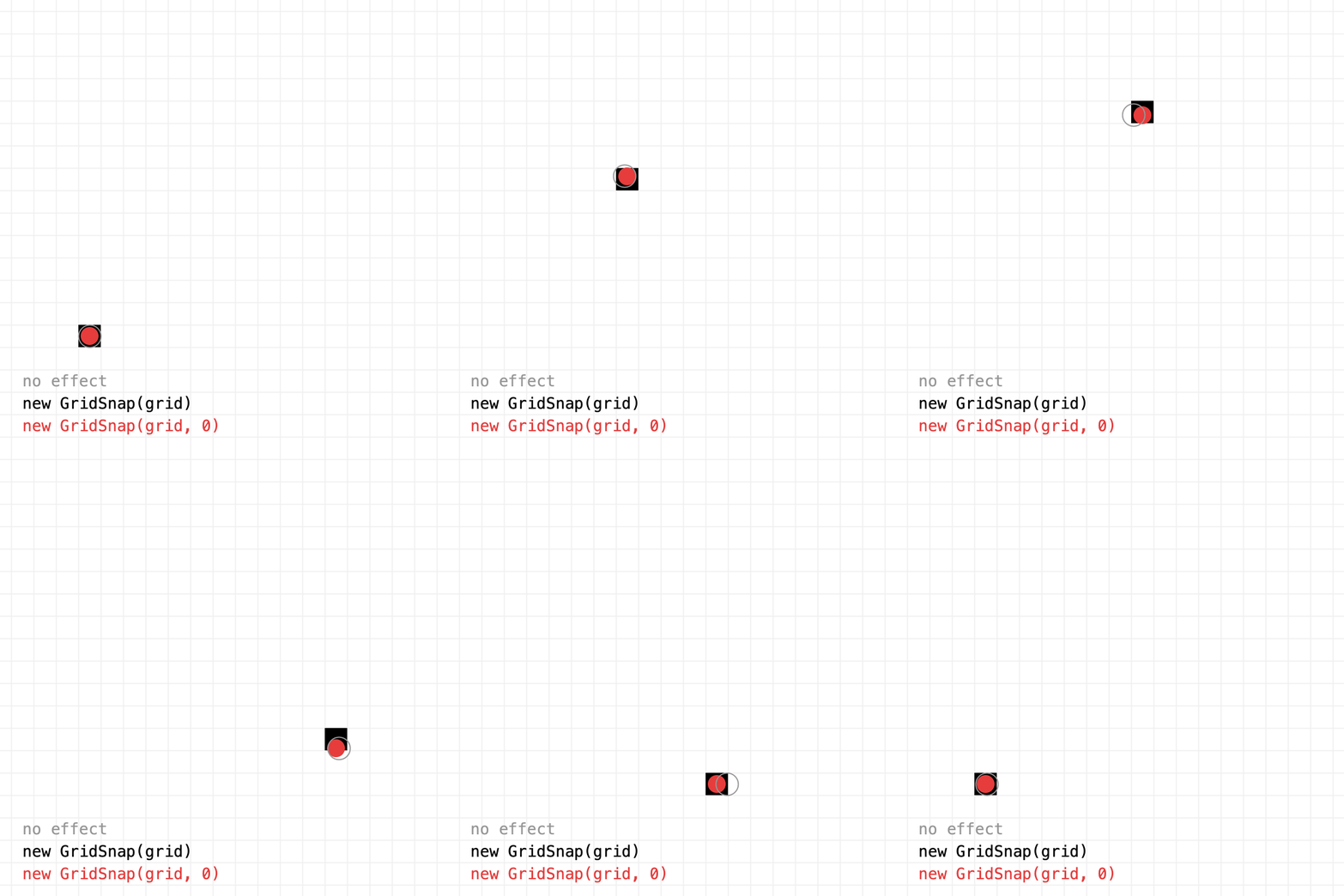
GridSnap(size) rounds x and y to multiples of size, so the motion jumps from cell to cell. GridSnap(sizeX, sizeY) uses a size per axis, and 0 leaves that axis alone:
snapped = motion().addEffect(new GridSnap(grid));
snappedX = motion().addEffect(new GridSnap(grid, 0));
Full sketch: GridSnapEffect
import ch.domizai.keyed.*;
import ch.domizai.keyed.effect.*;

int grid = 20;
Keyed<PVector> smooth, snapped, snappedX;

void settings() {
    size(400, 400);
}

void setup() {
    Keyed.init(this).setDuration(3);
    textFont(createFont("Courier", 14));
    rectMode(CENTER);

    smooth = motion();

    // GridSnap(size) rounds x and y to multiples of size,
    // so the motion jumps from cell to cell.
    snapped = motion().addEffect(new GridSnap(grid));

    // GridSnap(sizeX, sizeY) uses a size per axis; 0 leaves that axis alone.
    // This one steps sideways but moves smoothly up and down.
    snappedX = motion().addEffect(new GridSnap(grid, 0));
}

Keyed<PVector> motion() {
    return Keyed.ofPVector()
        .key(Key.at(0).setEasing(1 / 3f), new PVector(80, 300))
        .key(Key.at(1).setEasing(1 / 3f), new PVector(200, 80))
        .key(Key.at(2).setEasing(1 / 3f), new PVector(320, 300))
        .key(Key.at(3).setEasing(1 / 3f), new PVector(80, 300));
}

void draw() {
    background(255);

    // Grid lines between the snapped positions, so each one is a cell.
    stroke(240);
    for (int i = grid / 2; i < width; i += grid) {
        line(i, 0, i, height);
        line(0, i, width, i);
    }

    noStroke();
    PVector s = snapped.value();
    fill(0);
    rect(s.x, s.y, grid, grid);

    PVector x = snappedX.value();
    fill(230, 60, 60);
    circle(x.x, x.y, grid * 0.8f);

    PVector p = smooth.value();
    noFill();
    stroke(150);
    circle(p.x, p.y, grid);

    noStroke();
    fill(150);
    text("no effect", 20, 345);
    fill(0);
    text("new GridSnap(grid)", 20, 365);
    fill(230, 60, 60);
    text("new GridSnap(grid, 0)", 20, 385);
}
Spring
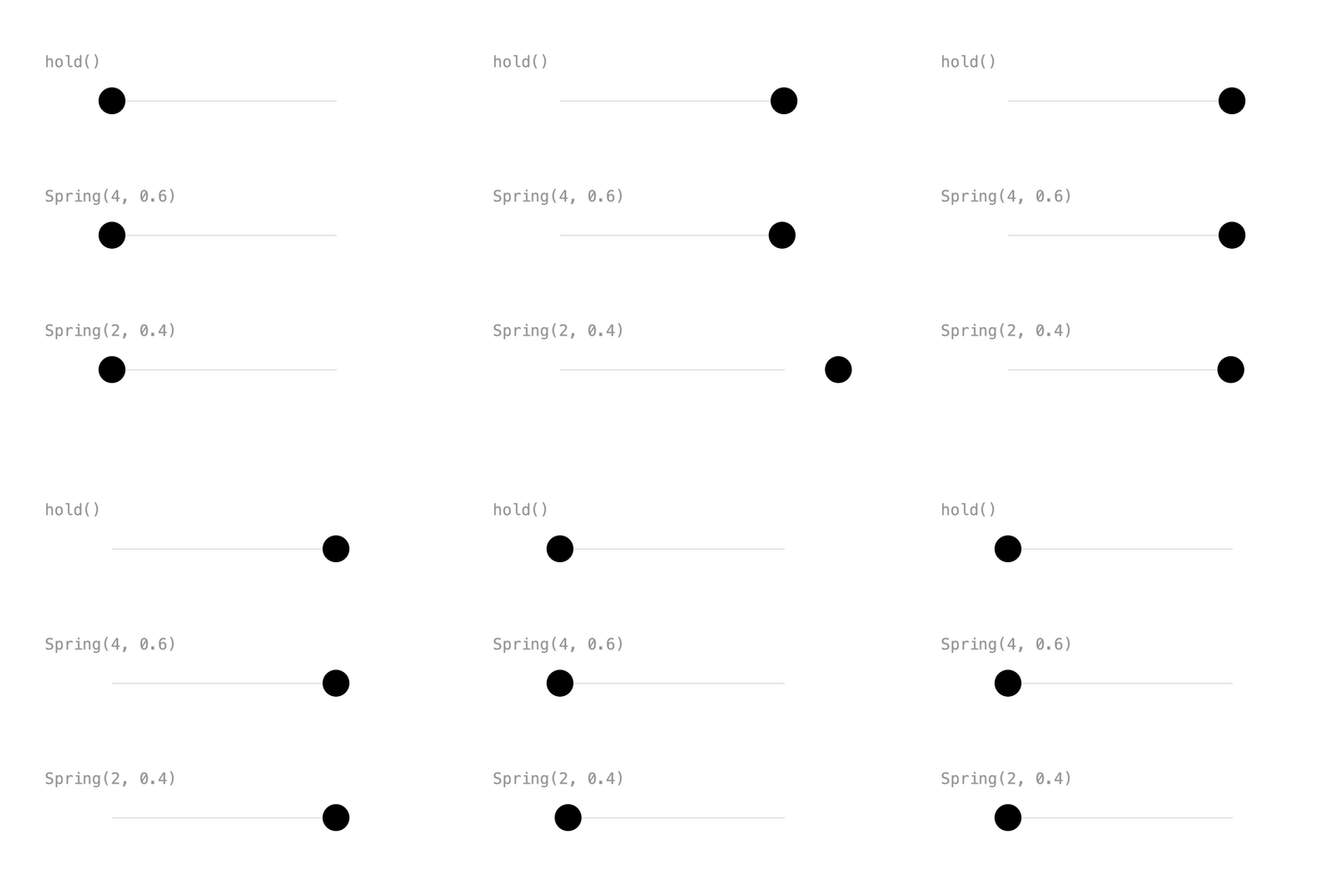
Spring(lerp, frequency, damping) follows the value like a spring: it lags behind, overshoots and settles. frequency is in wobbles per second; damping goes from 0 (wobbles forever) to 1 (no wobble).
stiff = jump().addEffect(new Spring<>(new FloatLerp(), 4, 0.6f));
wobbly = jump().addEffect(new Spring<>(new FloatLerp(), 2, 0.4f));
Spring needs a Lerp to work with any type. For PVectors there is a shortcut: Effect.spring(2, 0.4f).
Full sketch: SpringEffect
import ch.domizai.keyed.*;
import ch.domizai.keyed.effect.*;
import ch.domizai.keyed.lerps.*;

Keyed<Float> plain, stiff, wobbly;

void settings() {
    size(400, 400);
}

void setup() {
    Keyed.init(this).setDuration(4);
    textFont(createFont("Courier", 14));

    plain = jump();

    // Spring(lerp, frequency, damping) follows the value like a spring:
    // it lags behind, overshoots and settles. frequency is in wobbles per
    // second; damping goes from 0 (wobbles forever) to 1 (no wobble).
    stiff = jump().addEffect(new Spring<>(new FloatLerp(), 4, 0.6f));
    wobbly = jump().addEffect(new Spring<>(new FloatLerp(), 2, 0.4f));

    // For PVectors there is a shortcut: Effect.spring(2, 0.4f).
}

// Jumps right at 0.5 seconds and back at 2.5, with no motion in between.
Keyed<Float> jump() {
    return Keyed.ofFloat()
        .key(Key.at(0).hold(), 100f)
        .key(Key.at(0.5f).hold(), 300f)
        .key(2.5f, 100f);
}

void draw() {
    background(255);
    lane("hold()", 90, plain);
    lane("Spring(4, 0.6)", 210, stiff);
    lane("Spring(2, 0.4)", 330, wobbly);
}

void lane(String label, float y, Keyed<Float> x) {
    noStroke();
    fill(150);
    text(label, 40, y - 30);

    stroke(220);
    line(100, y, 300, y);

    noStroke();
    fill(0);
    circle(x.value(), y, 24);
}
Lag
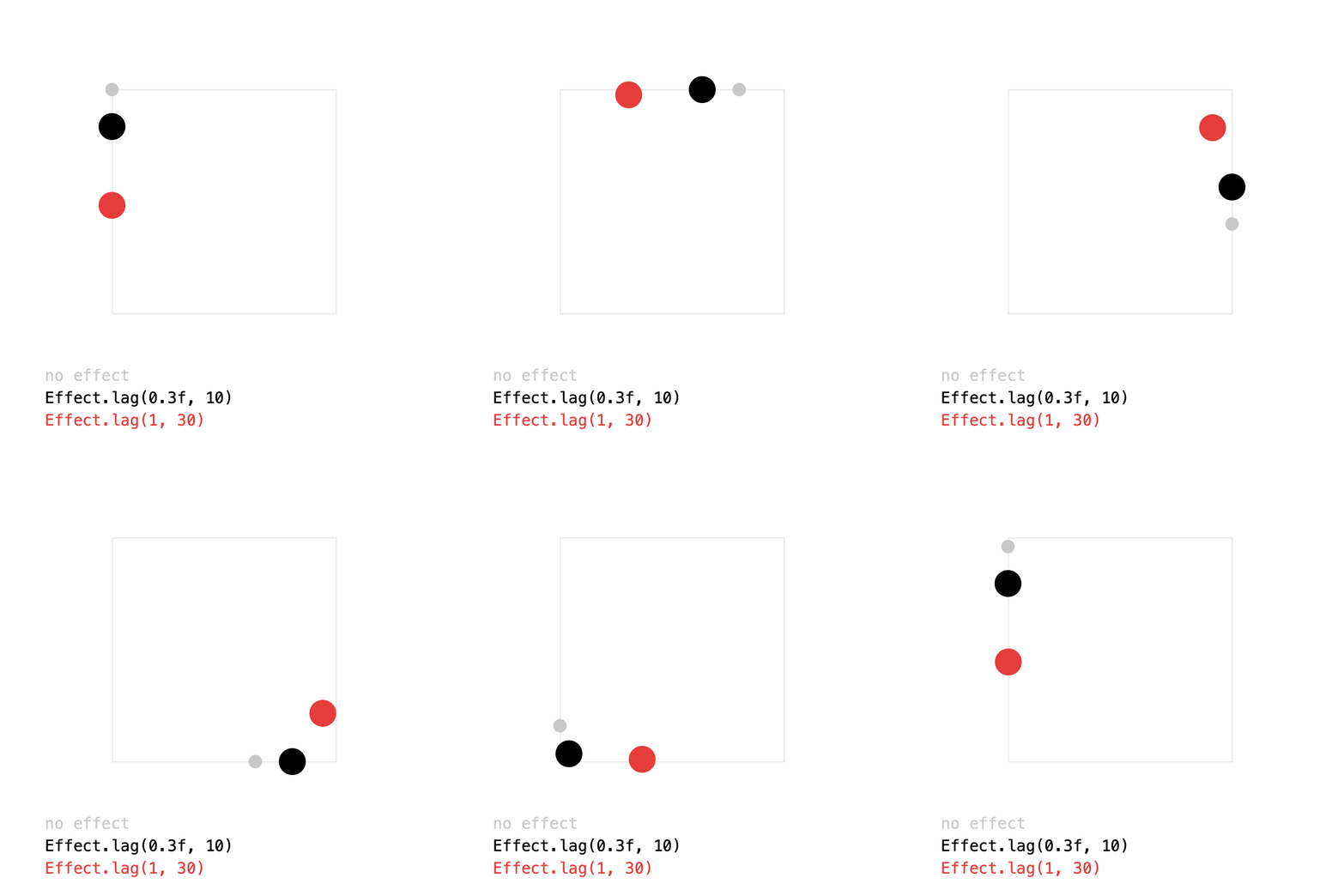
Lag averages the value over the last duration seconds: it trails behind and rounds off sharp corners, without overshooting. More samples is smoother, but each one costs an evaluation.
shortLag = square().addEffect(Effect.lag(0.3f, 10));
longLag = square().addEffect(Effect.lag(1, 30));
Effect.lag() is the shortcut for PVectors; other types use new Lag<>(lerp, duration, samples).
Full sketch: LagEffect
import ch.domizai.keyed.*;
import ch.domizai.keyed.effect.*;

PVector[] corners = {
    new PVector(100, 80),
    new PVector(300, 80),
    new PVector(300, 280),
    new PVector(100, 280)
};

Keyed<PVector> plain, shortLag, longLag;

void settings() {
    size(400, 400);
}

void setup() {
    Keyed.init(this).setDuration(4);
    textFont(createFont("Courier", 14));

    plain = square();

    // Lag averages the value over the last duration seconds: it trails
    // behind and rounds off sharp corners, without overshooting.
    // More samples is smoother, but each one costs an evaluation.
    shortLag = square().addEffect(Effect.lag(0.3f, 10));
    longLag = square().addEffect(Effect.lag(1, 30));

    // Effect.lag() is the shortcut for PVectors;
    // other types use new Lag<>(lerp, duration, samples).
}

// One corner per second, at constant speed.
Keyed<PVector> square() {
    Keyed<PVector> k = Keyed.ofPVector();
    for (int i = 0; i <= corners.length; i++) {
        k.key(i, corners[i % corners.length]);
    }
    return k;
}

void draw() {
    background(255);

    noFill();
    stroke(230);
    rect(100, 80, 200, 200);

    noStroke();
    PVector p = plain.value();
    fill(200);
    circle(p.x, p.y, 12);

    PVector a = shortLag.value();
    fill(0);
    circle(a.x, a.y, 24);

    PVector b = longLag.value();
    fill(230, 60, 60);
    circle(b.x, b.y, 24);

    fill(200);
    text("no effect", 40, 340);
    fill(0);
    text("Effect.lag(0.3f, 10)", 40, 360);
    fill(230, 60, 60);
    text("Effect.lag(1, 30)", 40, 380);
}
Stop motion
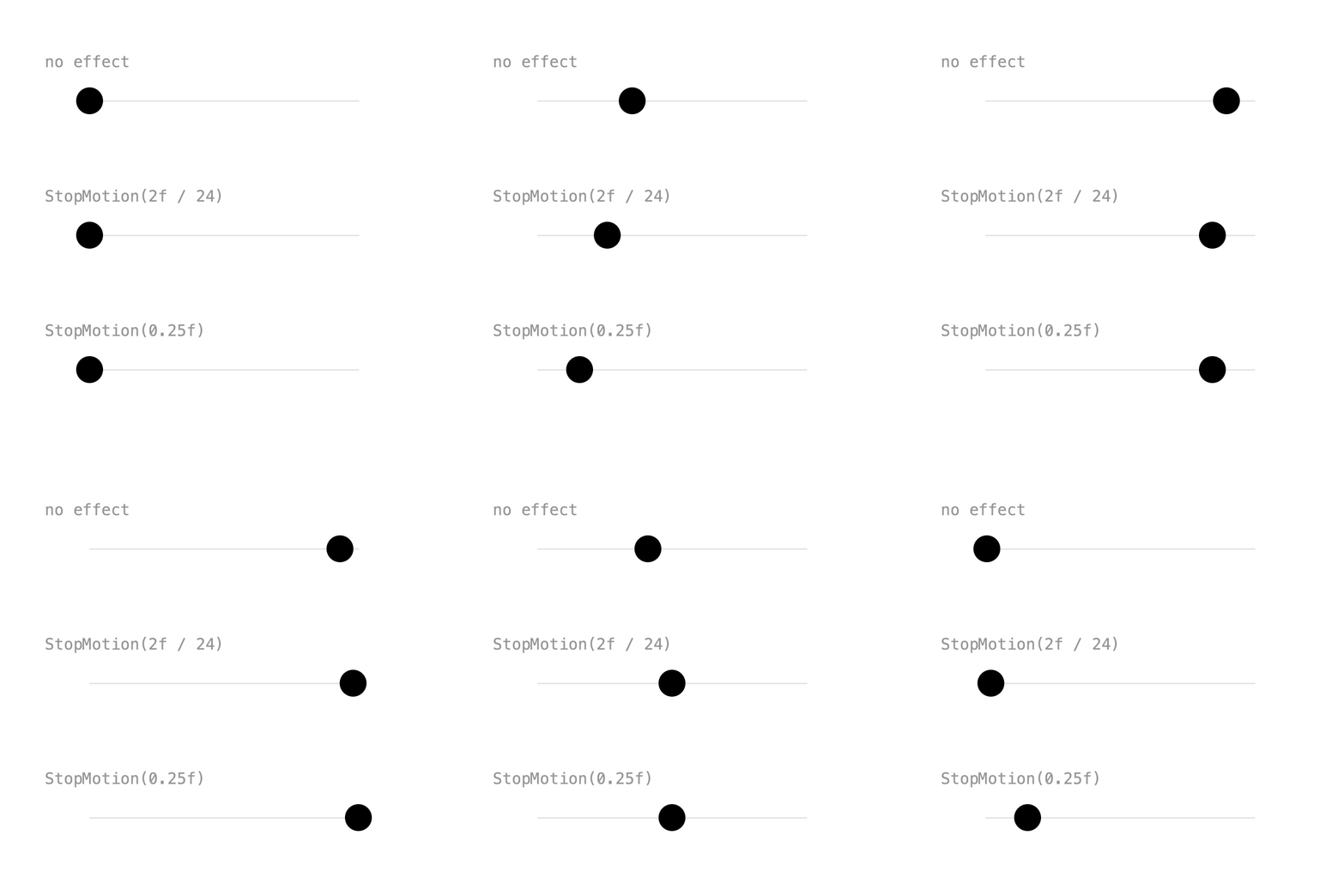
StopMotion(step) holds each pose for step seconds, whatever the keys. 2f / 24 is "on twos" at 24 fps, common in hand-drawn animation.
onTwos = sweep().addEffect(new StopMotion<>(2f / 24));
choppy = sweep().addEffect(new StopMotion<>(0.25f));
Unlike Key.hold(), which holds single keys, StopMotion samples the whole animation at a fixed rate.
Full sketch: StopMotionEffect
import ch.domizai.keyed.*;
import ch.domizai.keyed.effect.*;

Keyed<Float> smooth, onTwos, choppy;

void settings() {
    size(400, 400);
}

void setup() {
    Keyed.init(this).setDuration(2);
    textFont(createFont("Courier", 14));

    smooth = sweep();

    // StopMotion(step) holds each pose for step seconds, whatever the keys.
    // 2f / 24 is "on twos" at 24 fps, common in hand-drawn animation.
    onTwos = sweep().addEffect(new StopMotion<>(2f / 24));
    choppy = sweep().addEffect(new StopMotion<>(0.25f));

    // Unlike Key.hold(), which holds single keys,
    // StopMotion samples the whole animation at a fixed rate.
}

Keyed<Float> sweep() {
    return Keyed.ofFloat()
        .key(Key.at(0).setEasing(1 / 3f), 80f)
        .key(Key.at(1).setEasing(1 / 3f), 320f)
        .key(Key.at(2).setEasing(1 / 3f), 80f);
}

void draw() {
    background(255);
    lane("no effect", 90, smooth);
    lane("StopMotion(2f / 24)", 210, onTwos);
    lane("StopMotion(0.25f)", 330, choppy);
}

void lane(String label, float y, Keyed<Float> x) {
    noStroke();
    fill(150);
    text(label, 40, y - 30);

    stroke(220);
    line(80, y, 320, y);

    noStroke();
    fill(0);
    circle(x.value(), y, 24);
}
Stacking effects
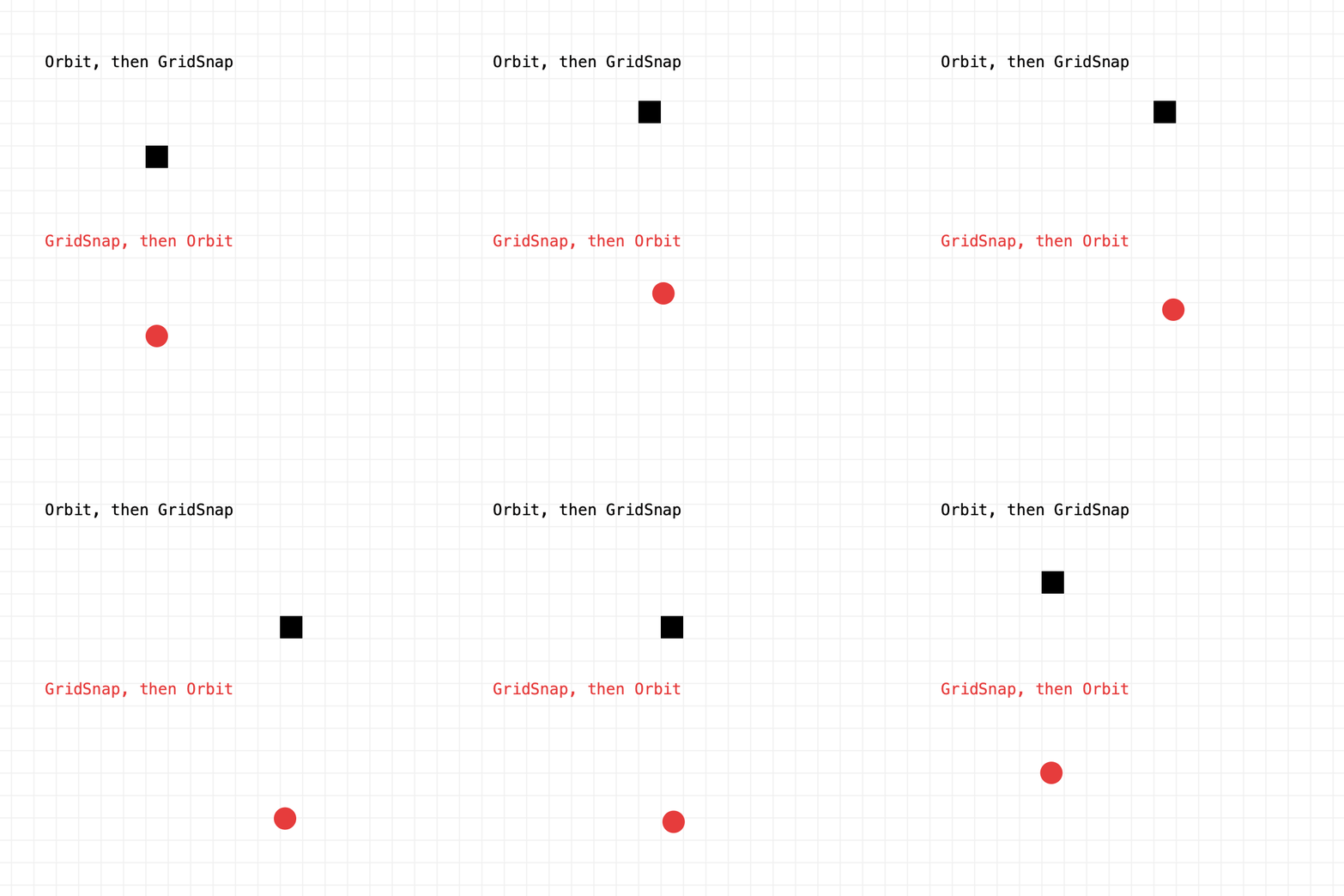
addEffect() can be called several times. Effects apply in the order they are added, each one to the result of the one before, so the order matters:
// Orbit, then GridSnap: the whole circle snaps to the grid.
snapLast = motion(130)
    .addEffect(new Orbit(40, 1))
    .addEffect(new GridSnap(grid));

// GridSnap, then Orbit: only the center snaps, the circle stays smooth.
snapFirst = motion(290)
    .addEffect(new GridSnap(grid))
    .addEffect(new Orbit(40, 1));
Full sketch: Stacking
import ch.domizai.keyed.*;
import ch.domizai.keyed.effect.*;

int grid = 20;
Keyed<PVector> snapLast, snapFirst;

void settings() {
    size(400, 400);
}

void setup() {
    Keyed.init(this).setDuration(4);
    textFont(createFont("Courier", 14));
    rectMode(CENTER);

    // addEffect() can be called several times. Effects apply in the order
    // they are added, each one to the result of the one before.

    // Orbit, then GridSnap: the whole circle snaps to the grid.
    snapLast = motion(130)
        .addEffect(new Orbit(40, 1))
        .addEffect(new GridSnap(grid));

    // GridSnap, then Orbit: only the center snaps, the circle stays smooth.
    snapFirst = motion(290)
        .addEffect(new GridSnap(grid))
        .addEffect(new Orbit(40, 1));
}

Keyed<PVector> motion(float y) {
    return Keyed.ofPVector()
        .key(Key.at(0).setEasing(1 / 3f), new PVector(100, y))
        .key(Key.at(2).setEasing(1 / 3f), new PVector(300, y))
        .key(Key.at(4).setEasing(1 / 3f), new PVector(100, y));
}

void draw() {
    background(255);

    stroke(240);
    for (int i = grid / 2; i < width; i += grid) {
        line(i, 0, i, height);
        line(0, i, width, i);
    }

    noStroke();
    PVector a = snapLast.value();
    fill(0);
    rect(a.x, a.y, grid, grid);

    PVector b = snapFirst.value();
    fill(230, 60, 60);
    circle(b.x, b.y, grid);

    fill(0);
    text("Orbit, then GridSnap", 40, 60);
    fill(230, 60, 60);
    text("GridSnap, then Orbit", 40, 220);
}
Custom effects
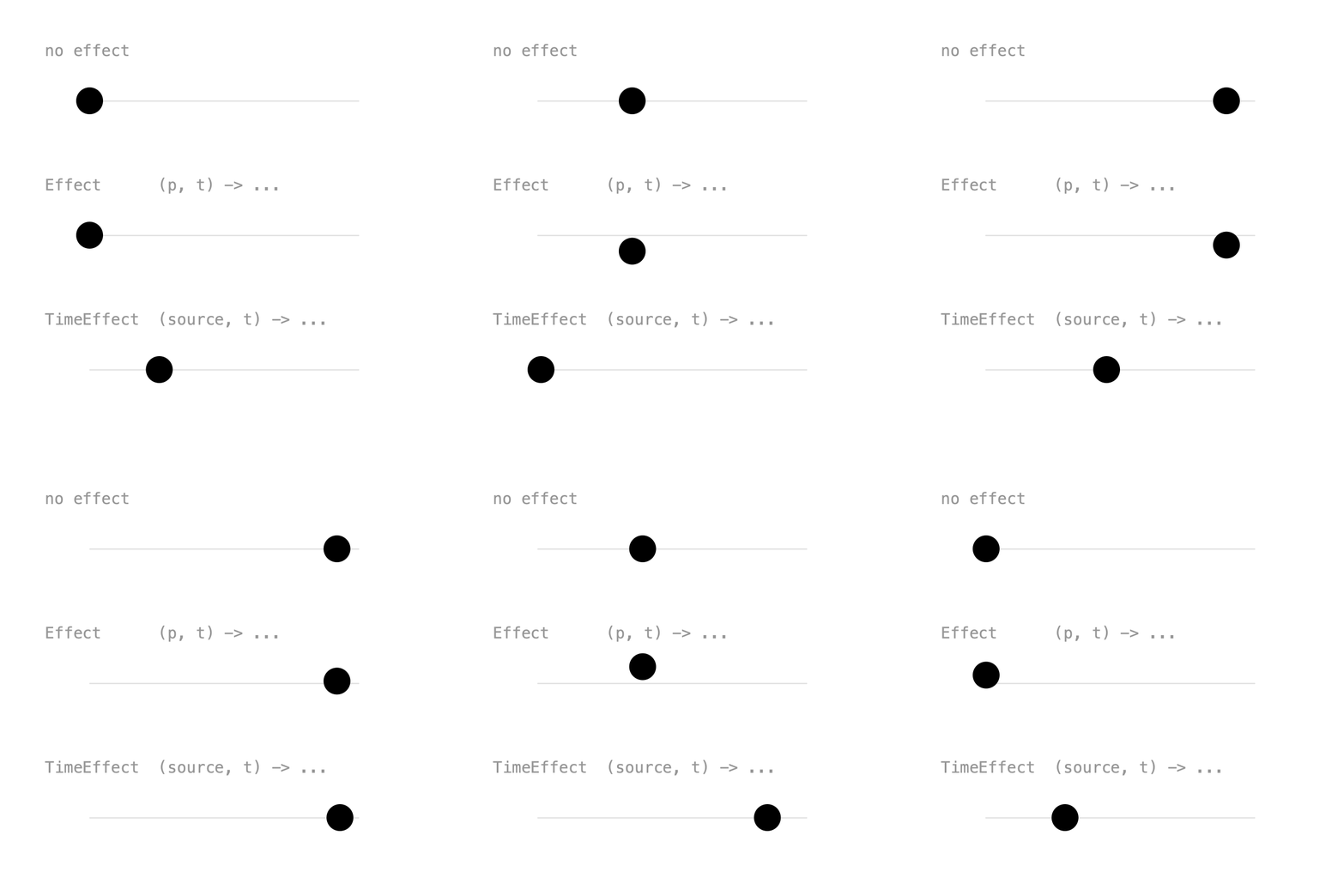
Writing your own effect takes one line. There are two kinds:
- An
Effectgets the value and the time, and returns a new value. - A
TimeEffectgets the animation itself as aTween, so it can read the value at any other time. Spring and Lag are time effects.
// Bobs up and down twice per second.
Effect<PVector> bob = (p, t) -> new PVector(p.x, p.y + 15 * sin(t * TWO_PI * 2));
bobbing = sweep(210).addEffect(bob);

// Plays the animation half a second late.
TimeEffect<PVector> late = (source, t) -> source.value(t - 0.5f);
delayed = sweep(330).addEffect(late);
Declaring the type tells Java which kind of effect the lambda is. Both can also be classes that implement Effect or TimeEffect.
Full sketch: CustomEffect
import ch.domizai.keyed.*;
import ch.domizai.keyed.effect.*;

Keyed<PVector> plain, bobbing, delayed;

void settings() {
    size(400, 400);
}

void setup() {
    Keyed.init(this).setDuration(3);
    textFont(createFont("Courier", 14));

    plain = sweep(90);

    // An Effect gets the value and the time, and returns a new value.
    // This one bobs up and down twice per second.
    Effect<PVector> bob = (p, t) -> new PVector(p.x, p.y + 15 * sin(t * TWO_PI * 2));
    bobbing = sweep(210).addEffect(bob);

    // A TimeEffect gets the animation itself as a Tween,
    // so it can read the value at any other time.
    // This one plays the animation half a second late.
    TimeEffect<PVector> late = (source, t) -> source.value(t - 0.5f);
    delayed = sweep(330).addEffect(late);

    // Declaring the type tells Java which kind of effect the lambda is.
    // Both can also be classes that implement Effect or TimeEffect.
}

Keyed<PVector> sweep(float y) {
    return Keyed.ofPVector()
        .key(Key.at(0).setEasing(1 / 3f), new PVector(80, y))
        .key(Key.at(1.5f).setEasing(1 / 3f), new PVector(320, y))
        .key(Key.at(3).setEasing(1 / 3f), new PVector(80, y));
}

void draw() {
    background(255);
    lane("no effect", 90, plain);
    lane("Effect      (p, t) -> ...", 210, bobbing);
    lane("TimeEffect  (source, t) -> ...", 330, delayed);
}

void lane(String label, float y, Keyed<PVector> ball) {
    noStroke();
    fill(150);
    text(label, 40, y - 40);

    stroke(220);
    line(80, y, 320, y);

    PVector p = ball.value();
    noStroke();
    fill(0);
    circle(p.x, p.y, 24);
}
Avoid (a custom effect)
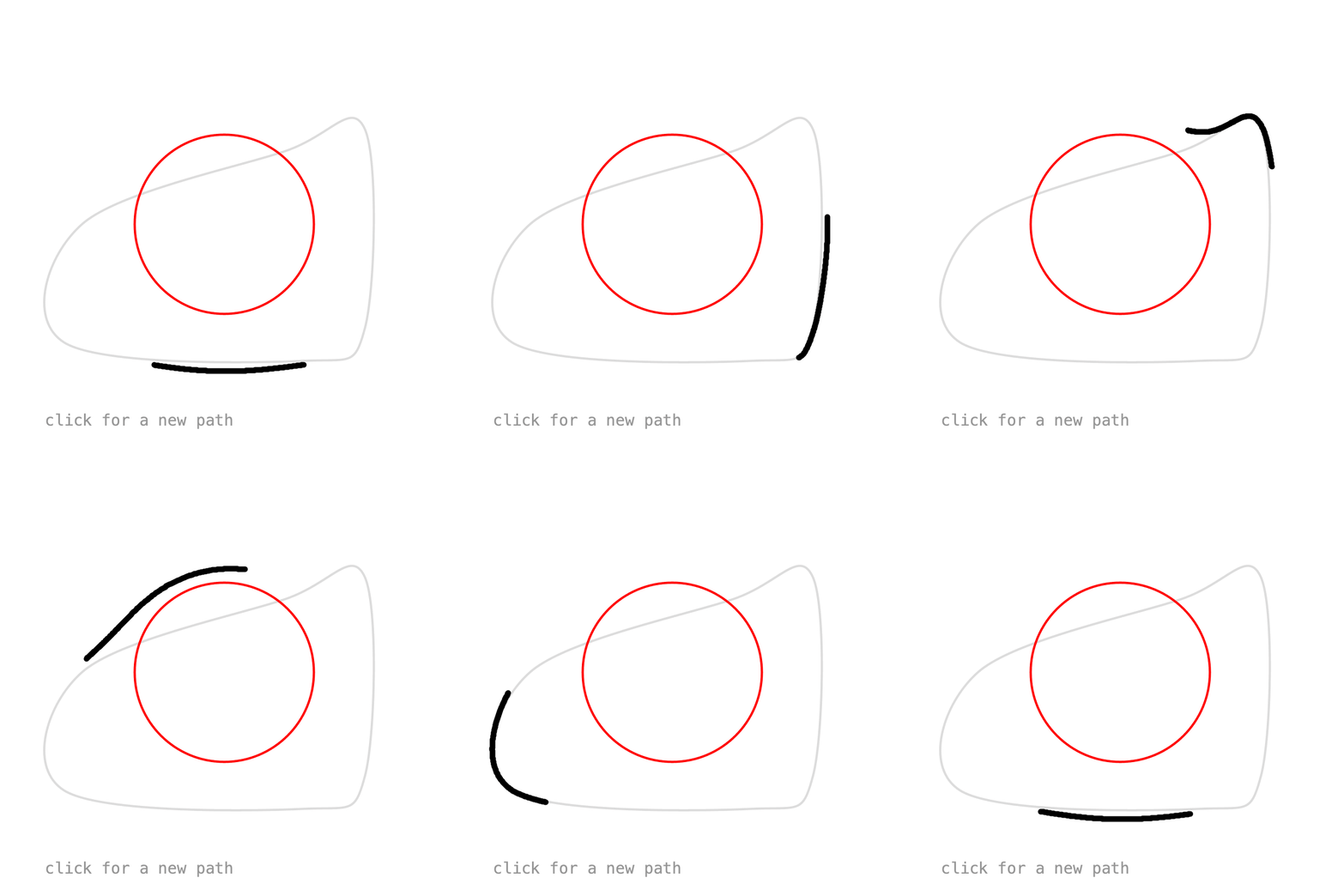
A custom effect can also take parameters: write a method that returns it. This one keeps a path out of a circle. Points inside are pushed onto its edge, so the motion walks around the obstacle instead of passing through it:
Effect<PVector> avoid(PVector center, float r, float soft) {
    return (PVector p, float t) -> {
        PVector away = PVector.sub(p, center);
        float d = away.mag();
        if (d >= r + soft || d == 0) return p;
        float h = max(soft - abs(d - r), 0) / soft;
        float target = max(d, r) + h * h * soft / 4;
        return PVector.add(center, away.setMag(target));
    };
}

pos.addEffect(avoid(obstacle, radius, softness));
target is a smooth max(d, r): the distance never drops below r, and soft rounds off the corners where the path meets the circle. The effect keeps a reference to obstacle, so changing it with obstacle.set() moves the obstacle. If the path runs right through the center, the motion swaps sides quickly there.
Full sketch: Avoid
import java.util.List;

import ch.domizai.keyed.*;
import ch.domizai.keyed.effect.*;
import ch.domizai.keyed.tween.*;

int points = 6;
float radius = 80;
float softness = 100;

List<PVector> loop;
Spline spline;
Keyed<PVector> pos;
PVector obstacle;

void settings() {
    size(400, 400);
}

void setup() {
    Keyed.init(this).setDuration(4);
    textFont(createFont("Courier", 14));

    // The same path on every run. Click for a new one.
    randomSeed(4);
    loop = createLoop(points);
    spline = new Spline(loop);

    pos = Keyed.ofPVector()
        .key(0, spline)
        .key(4, spline);

    obstacle = new PVector(width / 2f, height / 2f);
    pos.addEffect(avoid(obstacle, radius, softness));
}

// A custom effect that keeps the value out of a circle.
// Points inside are pushed onto its edge, so the motion walks around it.
// softness rounds off the corners where the path meets the circle.
Effect<PVector> avoid(PVector center, float r, float soft) {
    return (PVector p, float t) -> {
        PVector away = PVector.sub(p, center);
        float d = away.mag();
        if (d >= r + soft || d == 0) return p;
        // A smooth max(d, r): the distance never drops below r,
        // and blends in over the softness band around the edge.
        float h = max(soft - abs(d - r), 0) / soft;
        float target = max(d, r) + h * h * soft / 4;
        return PVector.add(center, away.setMag(target));
    };
}

// Random points, wrapped around like in SplinePath to close the loop.
List<PVector> createLoop(int n) {
    float margin = 50;
    List<PVector> pts = new ArrayList<>();
    for (int i = 0; i < n; i++) {
        pts.add(new PVector(random(margin, width - margin), random(margin, height - margin)));
    }
    List<PVector> wrapped = new ArrayList<>();
    wrapped.add(pts.get(n - 1));
    wrapped.addAll(pts);
    wrapped.add(pts.get(0));
    wrapped.add(pts.get(1));
    return wrapped;
}

void mousePressed() {
    loop = createLoop(points);
    spline.setPoints(loop);
}

void draw() {
    background(255);

    // The path without the effect. curveVertex() draws the same curve as
    // Spline, so the points can be passed straight in.
    noFill();
    stroke(220);
    strokeWeight(2);
    beginShape();
    for (PVector p : loop) {
        curveVertex(p.x, p.y);
    }
    endShape();

    stroke(255, 0, 0);
    circle(obstacle.x, obstacle.y, radius * 2);

    // The motion with the effect, as a trail. curveVertex() skips the
    // first and last points, so they are added twice.
    List<PVector> trail = pos.echo(200, 0.003f);
    PVector first = trail.get(0);
    PVector last = trail.get(trail.size() - 1);
    stroke(0);
    strokeWeight(5);
    beginShape();
    curveVertex(first.x, first.y);
    for (PVector p : trail) {
        curveVertex(p.x, p.y);
    }
    curveVertex(last.x, last.y);
    endShape();

    noStroke();
    fill(150);
    text("click for a new path", 40, 380);
}
Echo (motion trails)
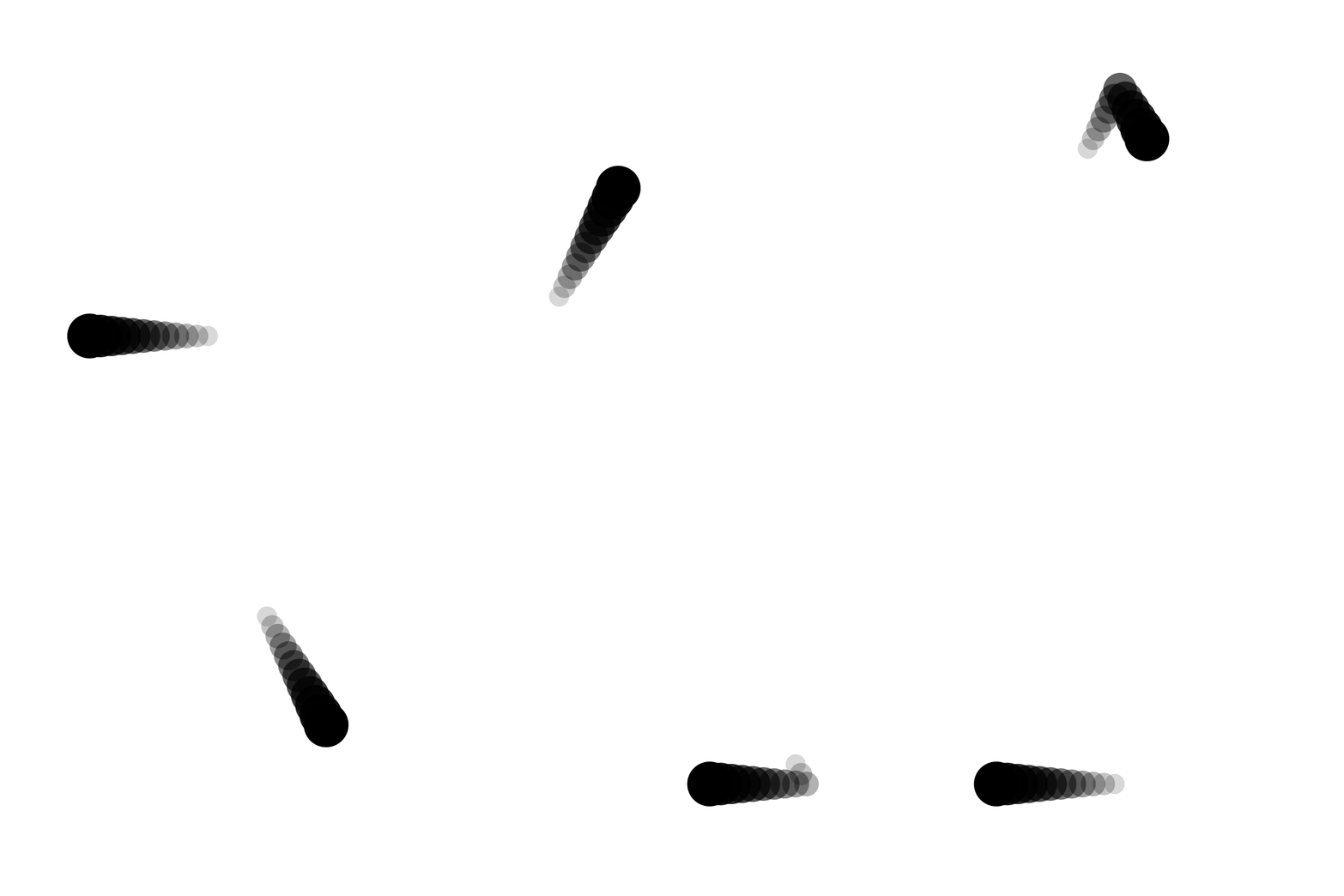
Not an effect per se, but a related tool: echo(samples, delay) returns the value now, delay seconds ago, 2 * delay seconds ago, and so on. That's a ready-made motion trail:
List<PVector> trail = pos.echo(12, 0.04f);

for (int i = trail.size() - 1; i >= 0; i--) {
    PVector p = trail.get(i);
    fill(0, map(i, 0, trail.size(), 255, 20));
    circle(p.x, p.y, 40 - i * 2);
}
Drawing oldest first puts the current position on top. A negative delay samples the future instead.
Full sketch: Echo
import java.util.List;

import ch.domizai.keyed.*;

Keyed<PVector> pos;

void settings() {
    size(400, 400);
}

void setup() {
    Keyed.init(this).setDuration(3);

    pos = Keyed.ofPVector()
        .key(0, new PVector(80, 300))
        .key(1, new PVector(200, 80))
        .key(2, new PVector(320, 300))
        .key(3, new PVector(80, 300));
}

void draw() {
    background(255);

    // echo(samples, delay) returns the value now, delay seconds ago,
    // 2 * delay seconds ago, and so on: a ready-made motion trail.
    // A negative delay samples the future instead.
    List<PVector> trail = pos.echo(12, 0.04f);

    // Oldest first, so the current position is drawn on top.
    noStroke();
    for (int i = trail.size() - 1; i >= 0; i--) {
        PVector p = trail.get(i);
        fill(0, map(i, 0, trail.size(), 255, 20));
        circle(p.x, p.y, 40 - i * 2);
    }
}
Next: Types.