1. Getting Started
In this chapter you animate your first value, move things around with vectors, meet the other value types, and learn that an animation can be read at any point in time.
Your first key
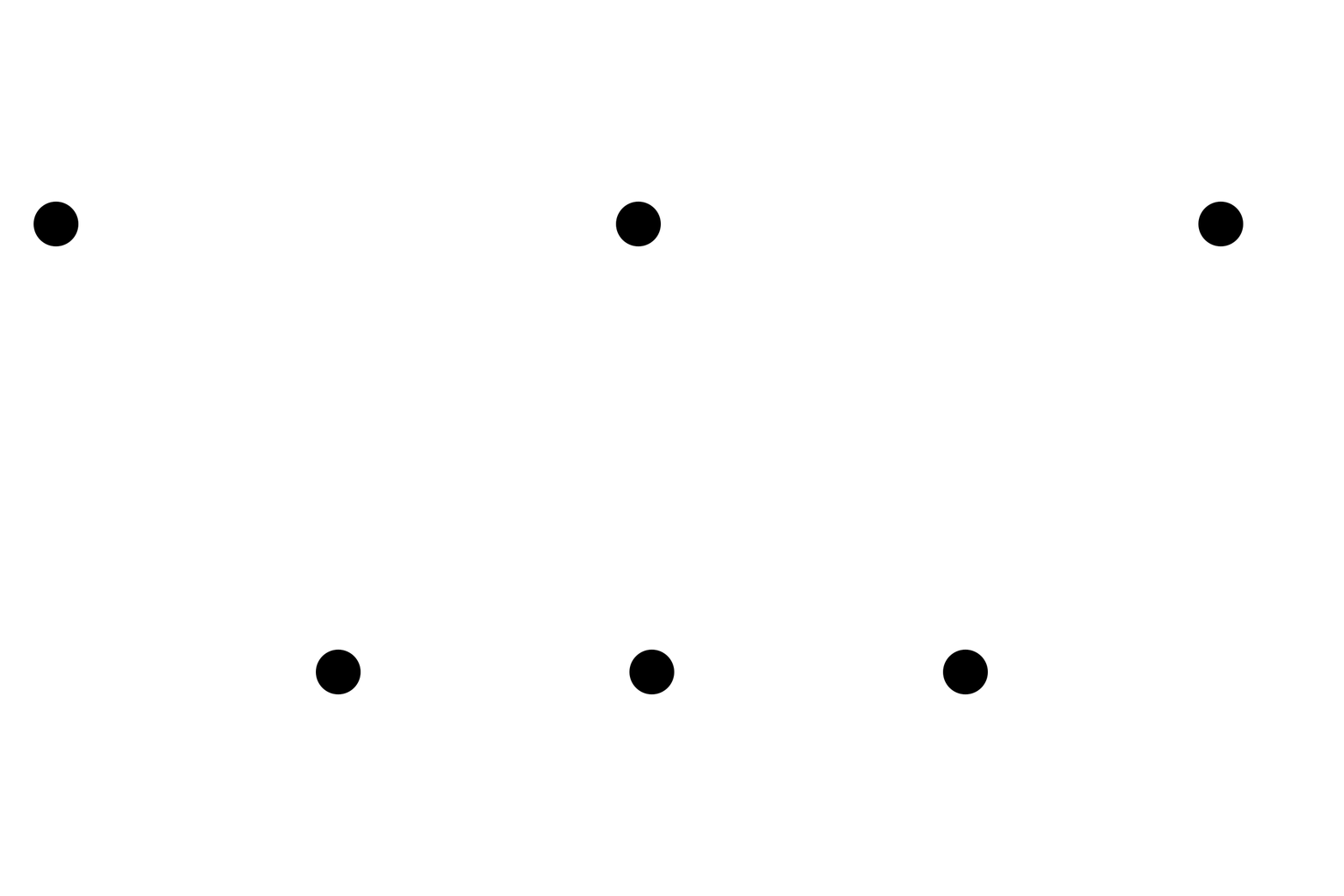
Every Keyed sketch starts by connecting the library to the sketch in setup():
init() hooks Keyed into Processing, so animations follow real time without you having to advance them. It returns the default timeline, which we tell to loop every 2 seconds.
Next, create an animated value. Keyed.ofFloat() makes an animated float. Then add keys: a time in seconds and the value at that time.
At 0 seconds x is 50, at 1 second it's 350, and at 2 seconds it's back at 50. In between, Keyed blends the values. In draw(), value() gives you the value at the current time:
That's all there is to it. The rest of this tutorial adds to this pattern.
Full sketch: FirstKey
import ch.domizai.keyed.*;

// An animated float: its value changes over time, blending from key to key.
Keyed<Float> x;

void settings() {
    size(400, 400);
}

void setup() {
    // Connects Keyed to the sketch so animations follow real time.
    // It returns the default timeline, which we loop every 2 seconds.
    Keyed.init(this).setDuration(2);

    // Each key is a time in seconds and a value.
    x = Keyed.ofFloat()
        .key(0, 50f)
        .key(1, 350f)
        .key(2, 50f);
}

void draw() {
    background(255);
    noStroke();
    fill(0);
    // value() is the value at the current time.
    circle(x.value(), height / 2, 40);
}
Vectors
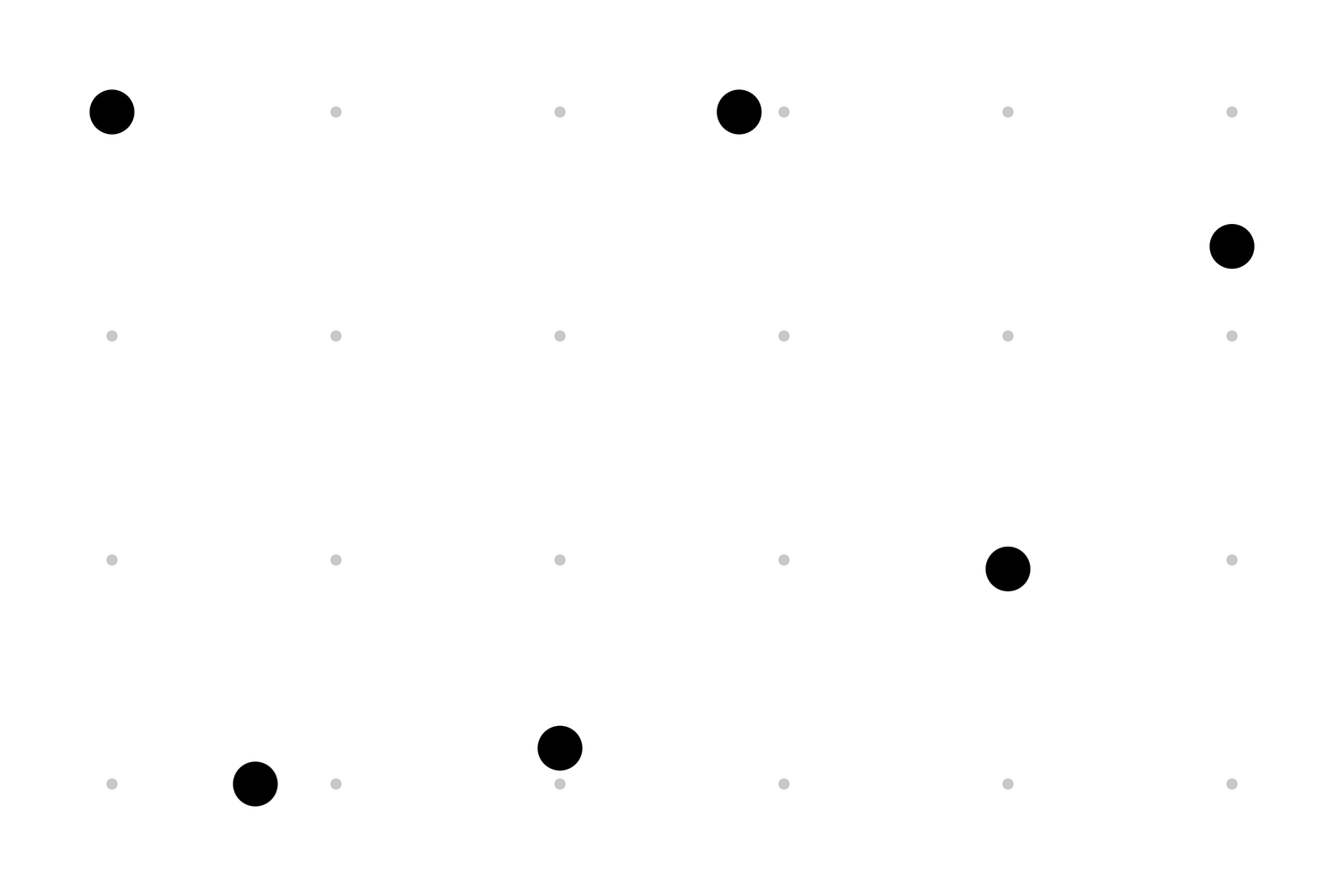
Keyed.ofPVector() animates a PVector, blending x, y and z together. Here the ball visits one corner per second. The last key returns to the first corner, so the loop closes without a jump:
pos = Keyed.ofPVector();
for (int i = 0; i <= corners.length; i++) {
    pos.key(i, corners[i % corners.length]);
}
Keys store a copy of the vector you pass, so changing corners later won't move them.
Full sketch: Vectors
import ch.domizai.keyed.*;

// An animated PVector blends x, y and z together.
Keyed<PVector> pos;

PVector[] corners = {
    new PVector(100, 100),
    new PVector(300, 100),
    new PVector(300, 300),
    new PVector(100, 300)
};

void settings() {
    size(400, 400);
}

void setup() {
    Keyed.init(this).setDuration(4);

    pos = Keyed.ofPVector();
    // One corner per second. The last key returns to the first corner,
    // so the loop closes without a jump.
    for (int i = 0; i <= corners.length; i++) {
        pos.key(i, corners[i % corners.length]);
    }
    // Keys store a copy, so changing corners now would not move them.
}

void draw() {
    background(255);
    noStroke();

    fill(200);
    for (PVector c : corners) {
        circle(c.x, c.y, 10);
    }

    PVector p = pos.value();
    fill(0);
    circle(p.x, p.y, 40);
}
Value types
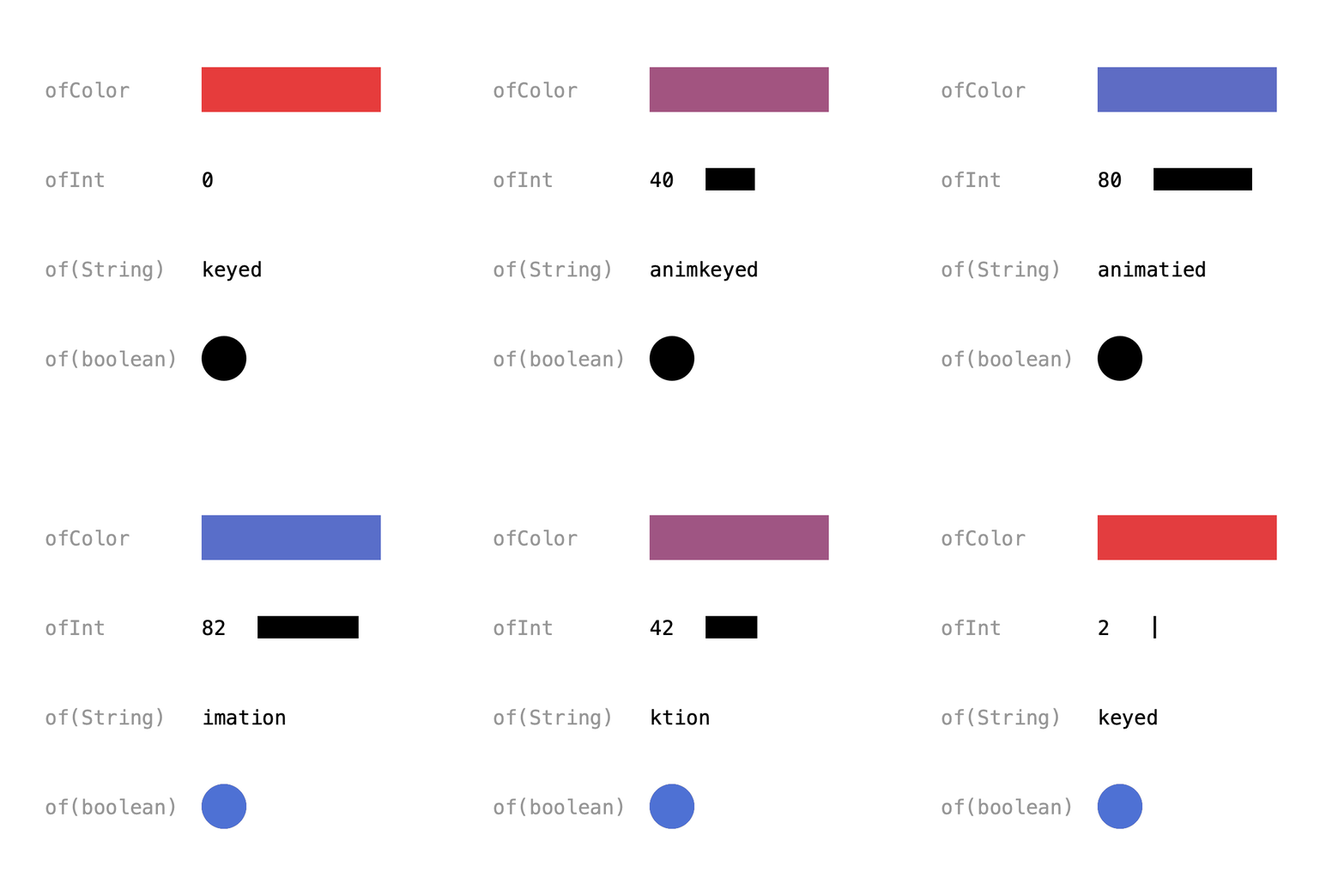
Keyed knows how to blend more than numbers:
| Factory | Type | How it blends |
|---|---|---|
Keyed.ofFloat() |
Float |
linearly |
Keyed.ofInt() |
Integer |
linearly, rounded to the nearest int |
Keyed.ofColor() |
Integer |
red, green, blue and alpha |
Keyed.ofPVector() |
PVector |
x, y and z |
Keyed.ofString() |
String |
morphs one character edit at a time |
Keyed.ofBoolean() |
Boolean |
switches when the next key is reached |
Each factory also takes a default value, e.g. Keyed.ofFloat(50), used while there are no keys. Without one it's 0, opaque black, false, an empty String or (0, 0, 0). Keyed.of(value) is a shorthand that picks the type from the value, e.g. Keyed.of(0f) is the same as Keyed.ofFloat(0); ints and colors always need ofInt() and ofColor().
Colors are ints in Processing, so they need their own factory, ofColor(); otherwise they'd be blended as plain numbers.
col = Keyed.ofColor()
    .key(0, color(230, 60, 60))
    .key(2, color(60, 120, 230))
    .key(4, color(230, 60, 60));

word = Keyed.ofString()
    .key(0, "keyed")
    .key(2, "animation")
    .key(4, "keyed");
Want to blend something else? See Types.
Full sketch: ValueTypes
import ch.domizai.keyed.*;

Keyed<Integer> col;
Keyed<Integer> count;
Keyed<String> word;
Keyed<Boolean> visible;

void settings() {
    size(400, 400);
}

void setup() {
    Keyed.init(this).setDuration(4);
    textFont(createFont("Courier", 18));
    textAlign(LEFT, CENTER);

    // Colors are ints in Processing, so they have their own factory.
    col = Keyed.ofColor()
        .key(0, color(230, 60, 60))
        .key(2, color(60, 120, 230))
        .key(4, color(230, 60, 60));

    // Whole numbers, rounded to the nearest int.
    count = Keyed.ofInt()
        .key(0, 0)
        .key(2, 100)
        .key(4, 0);

    // Text morphs one character edit at a time.
    word = Keyed.ofString()
        .key(0, "keyed")
        .key(2, "animation")
        .key(4, "keyed");

    // Booleans can't blend, so they switch when the next key is reached.
    visible = Keyed.ofBoolean()
        .key(0, true)
        .key(2, false);
}

void draw() {
    background(255);
    noStroke();

    label("ofColor", 80);
    fill(col.value());
    rect(180, 60, 160, 40);

    label("ofInt", 160);
    fill(0);
    text(count.value(), 180, 160);
    rect(230, 150, count.value() * 1.1f, 20);

    label("of(String)", 240);
    fill(0);
    text(word.value(), 180, 240);

    label("of(boolean)", 320);
    fill(visible.value() ? 0 : color(0, 0, 180));
    circle(200, 320, 40);
}

void label(String s, float y) {
    fill(150);
    text(s, 40, y);
}
Any time
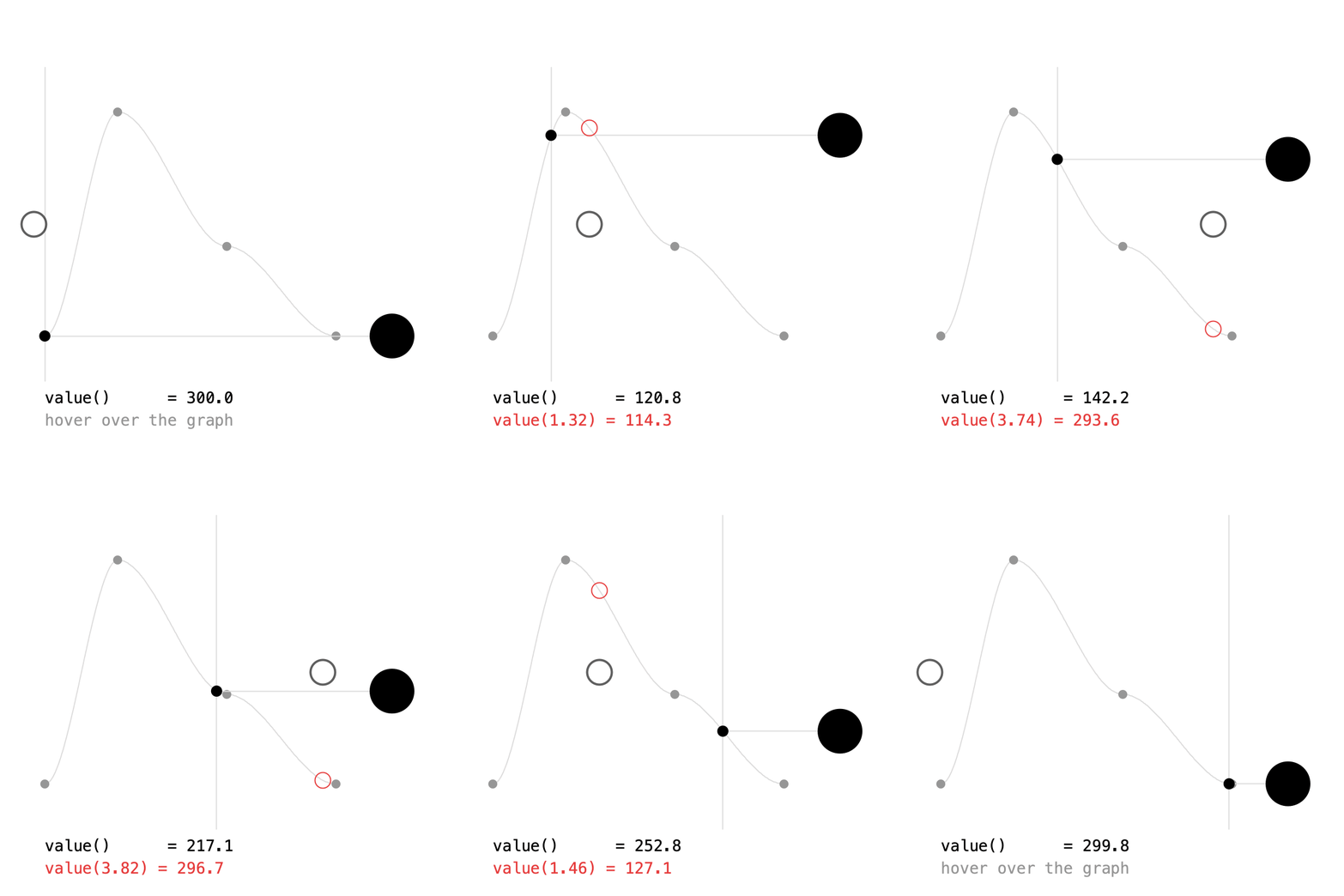
value() is the value now. value(t) is the value at any time t, past or future. Here it's used to draw the whole animation as a graph, one point per pixel:
beginShape();
for (int x = (int) gx0; x <= gx1; x++) {
    float t = map(x, gx0, gx1, 0, duration);
    vertex(x, ballY.value(t));
}
endShape();
keys() lists the keys, and each key's t() is its time, which is handy for drawing them:
The current time of the default timeline is Keyed.defaultTimeline().t(). Hover over the graph in the sketch to read the value at any other time.
Full sketch: AnyTime
import ch.domizai.keyed.*;
float duration = 4;
Keyed<Float> ballY;
// The graph maps time 0..duration to x.
float gx0 = 40, gx1 = 300;
void settings() {
size(400, 400);
}
void setup() {
Keyed.init(this).setDuration(duration);
textFont(createFont("Courier", 14));
// The ball's height over time.
ballY = Keyed.ofFloat()
.key(Key.at(0).setEasing(1 / 3f), 300f)
.key(Key.at(1).setEasing(1 / 3f), 100f)
.key(Key.at(2.5f).setEasing(1 / 3f), 220f)
.key(Key.at(4).setEasing(1 / 3f), 300f);
}
void draw() {
background(255);
// value(t) gives the value at any time, not just the current one.
// Here it draws the whole animation as a graph, one point per pixel.
noFill();
stroke(220);
beginShape();
for (int x = (int) gx0; x <= gx1; x++) {
float t = map(x, gx0, gx1, 0, duration);
vertex(x, ballY.value(t));
}
endShape();
// The keys, on the curve.
noStroke();
fill(150);
for (Key k : ballY.keys()) {
    circle(tx(k.t()), ballY.value(k.t()), 8);
}
// value() is the value at the timeline's current time, so the playhead
// always sits on the curve, at the same height as the ball.
float now = Keyed.defaultTimeline().t();
float y = ballY.value();
stroke(220);
line(tx(now), 60, tx(now), 340);
line(tx(now), y, 350, y);
noStroke();
fill(0);
circle(tx(now), y, 10);
circle(350, y, 40);
text("value() = " + nf(y, 1, 1), 40, 360);
// Hover over the graph to read the value at any other time.
if (mouseX >= gx0 && mouseX <= gx1) {
float t = map(mouseX, gx0, gx1, 0, duration);
float v = ballY.value(t);
noFill();
stroke(230, 60, 60);
circle(mouseX, v, 14);
noStroke();
fill(230, 60, 60);
text("value(" + nf(t, 1, 2) + ") = " + nf(v, 1, 1), 40, 380);
} else {
fill(150);
text("hover over the graph", 40, 380);
}
}
float tx(float t) {
return map(t, 0, duration, gx0, gx1);
}
Next: Easing.